FMC Hub. Every building.
One Hub.
The FMC Hub is where your buildings report in: what needs attention, what FMC is working on and what the meters say.
One page for each building, on every screen you use.
Home
Every building, on one map.
Sign in and your buildings are on the map, with the one that needs attention called out first. Search for a building and you are on its page.
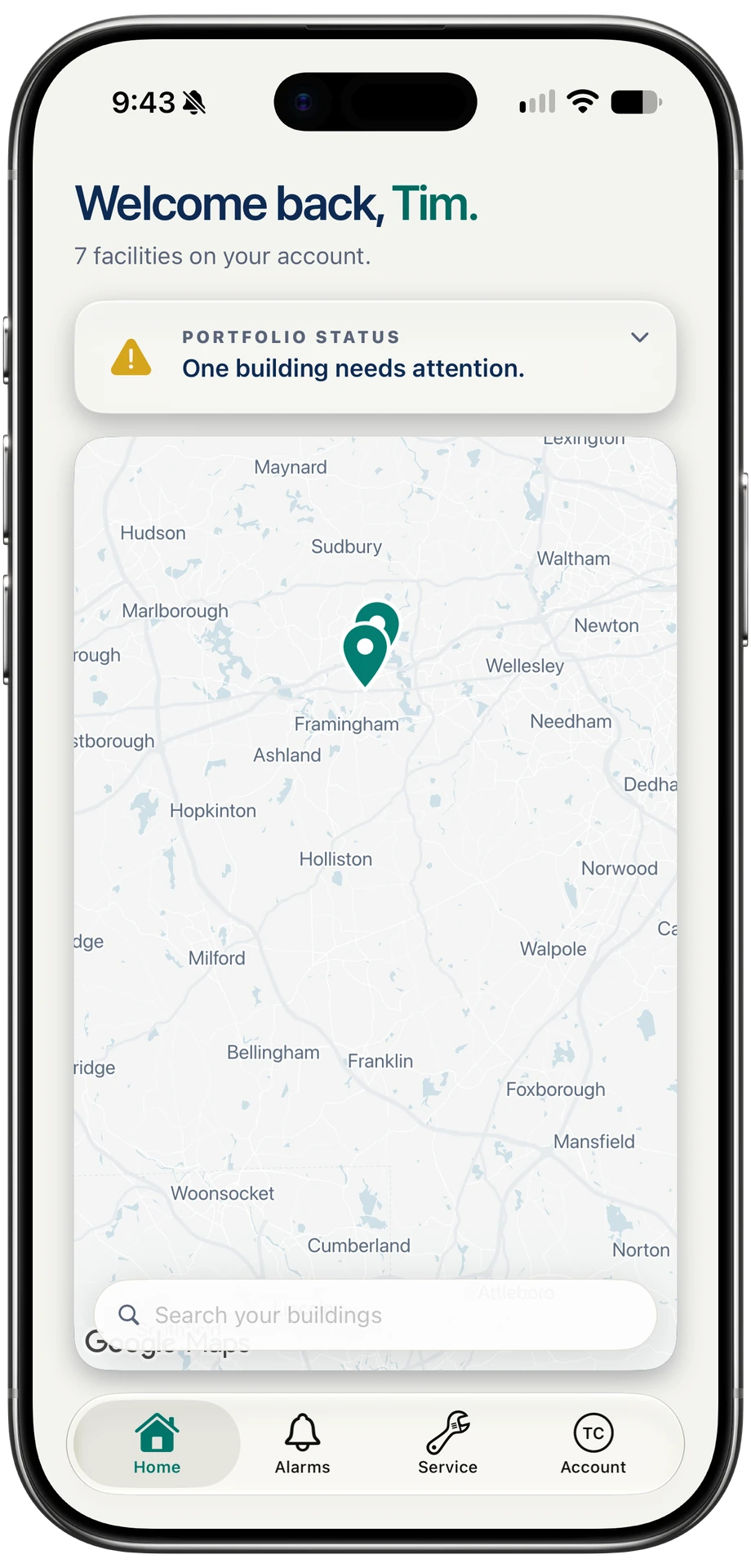
7 buildings on this sample account. One needs attention.
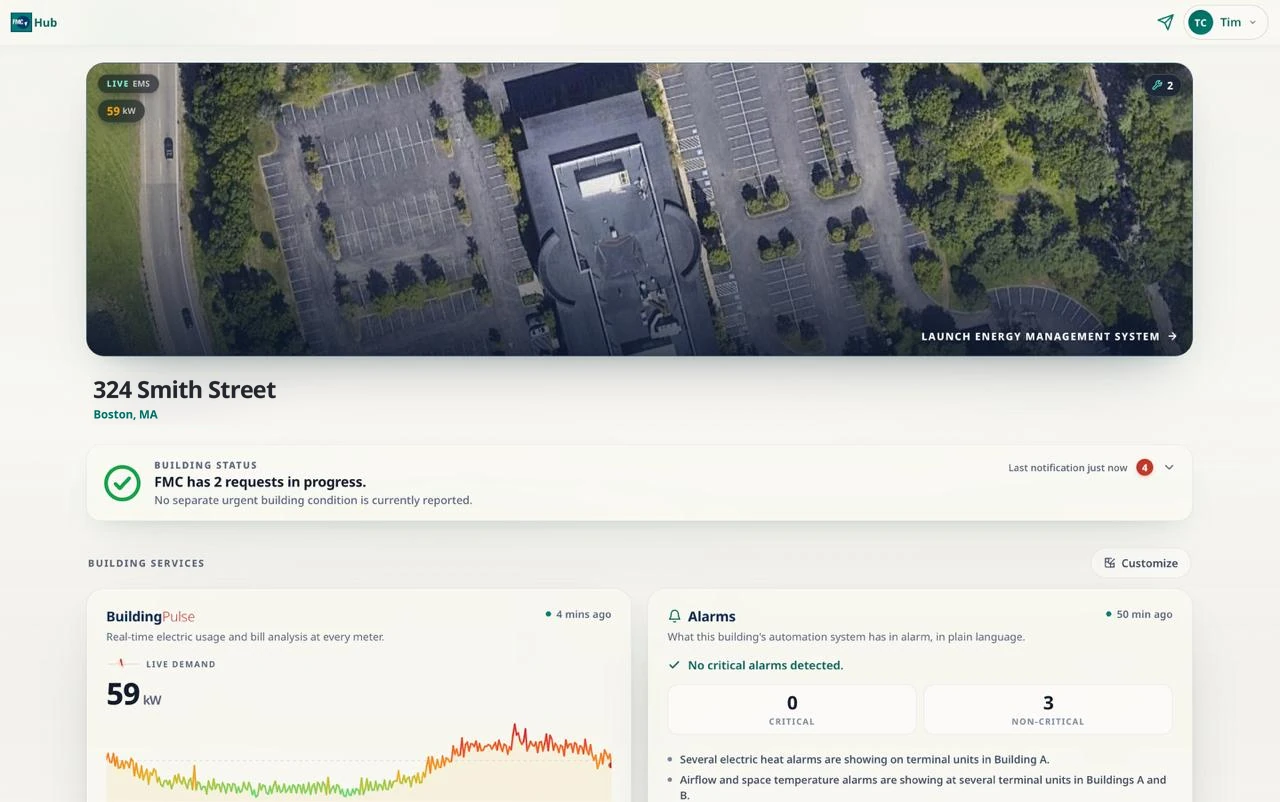
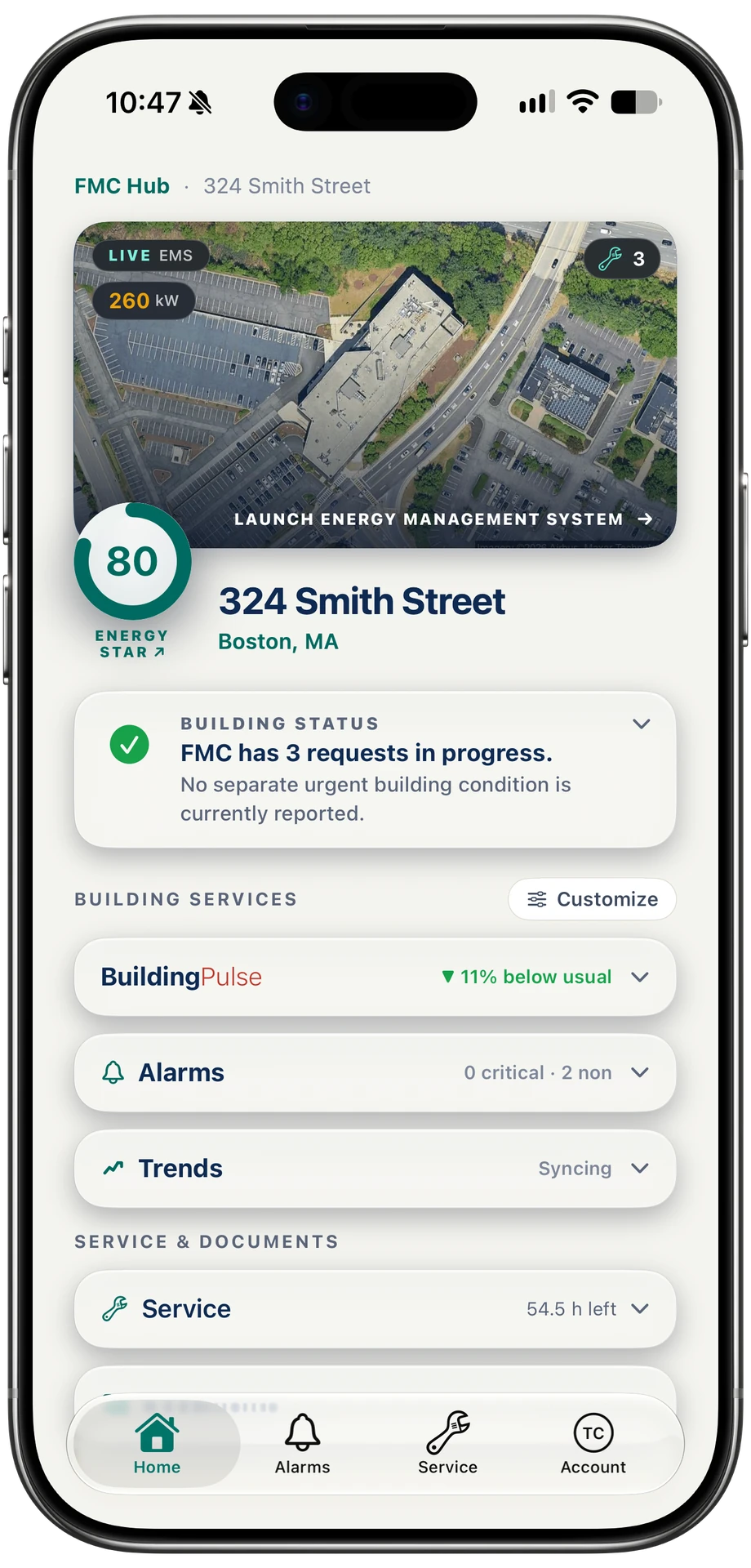
Each building’s page carries its status in one sentence, its live demand and its ENERGY STAR score, with doors to its alarms, trends, service and documents.
See BuildingPulseAlarms
Alarms, in plain language.
A building automation system reports alarms in its own shorthand. The Hub reads them and tells you what is happening, where, since when and whether it is critical.
- SouthPing FailedoffnormalPingAlarms
- SouthPing FailedoffnormalPingAlarms
- SouthPing FailedoffnormalPingAlarms
Non-critical alarm
Several South controls are not responding to the building monitoring system.
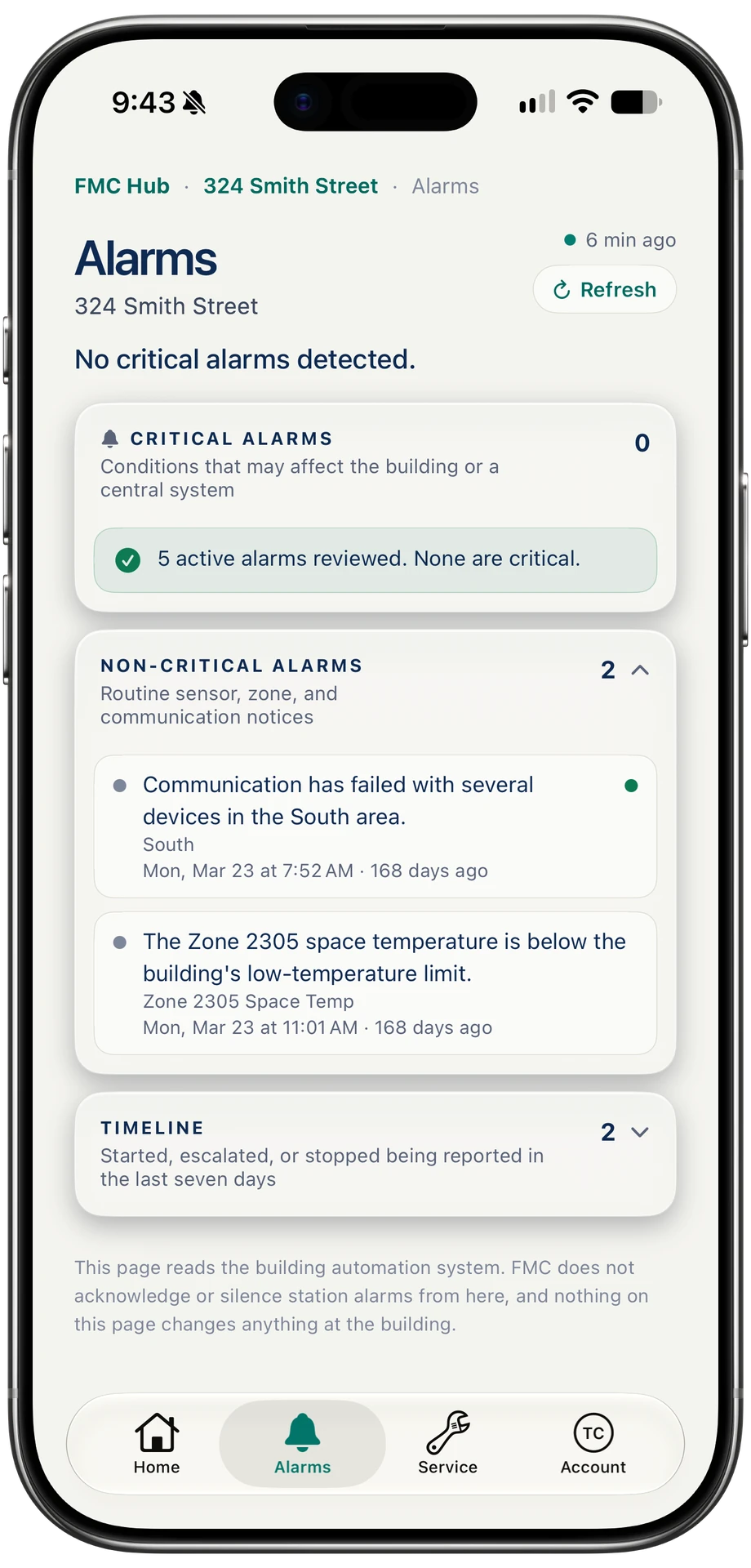
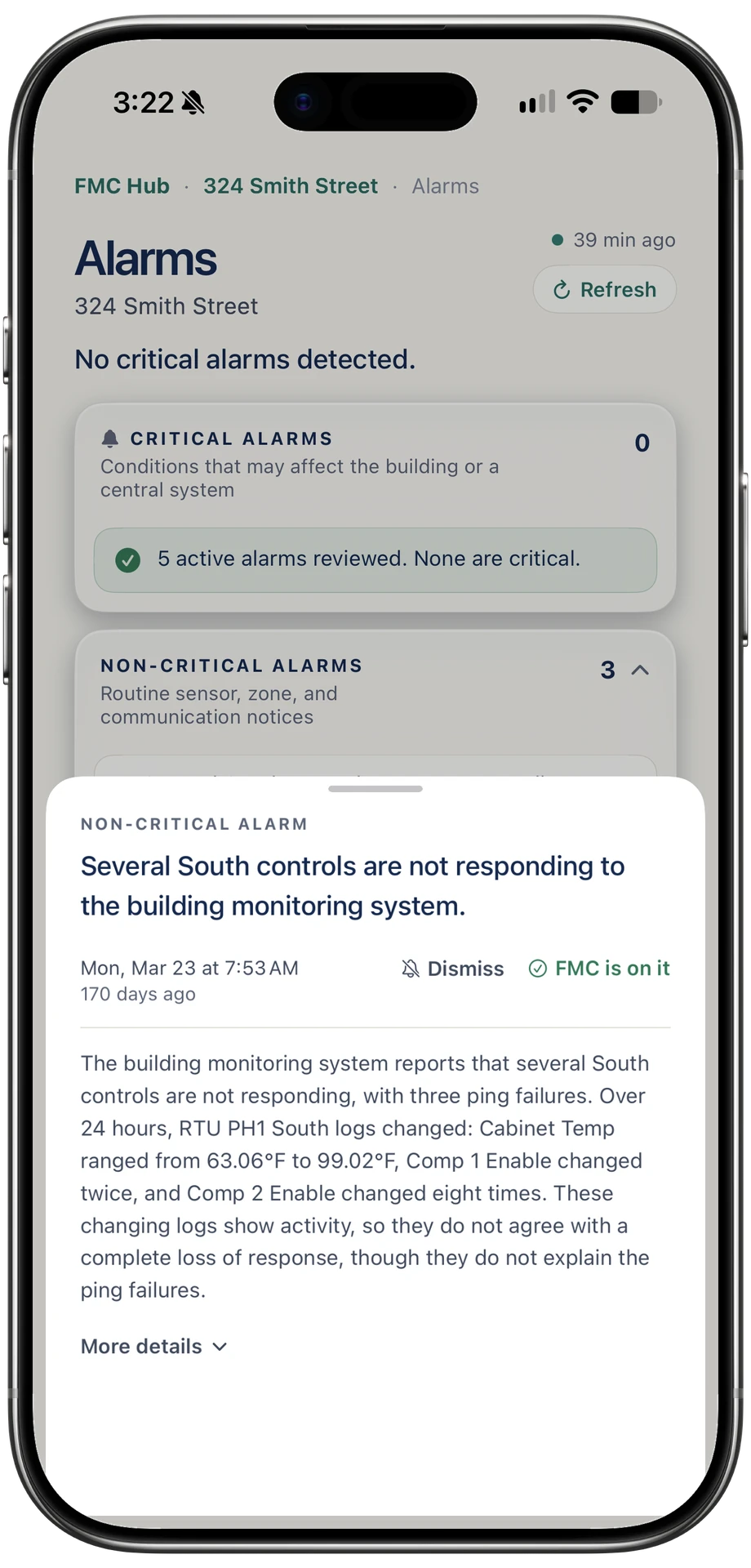
The Hub reads your system. It does not acknowledge or silence an alarm, and nothing on the page changes anything at the building.
Service
Ask for service. Follow it to the fix.
A request starts on the building’s own page and stays in one place until the work is done, with the FMC engineer working on it and every reply.
-
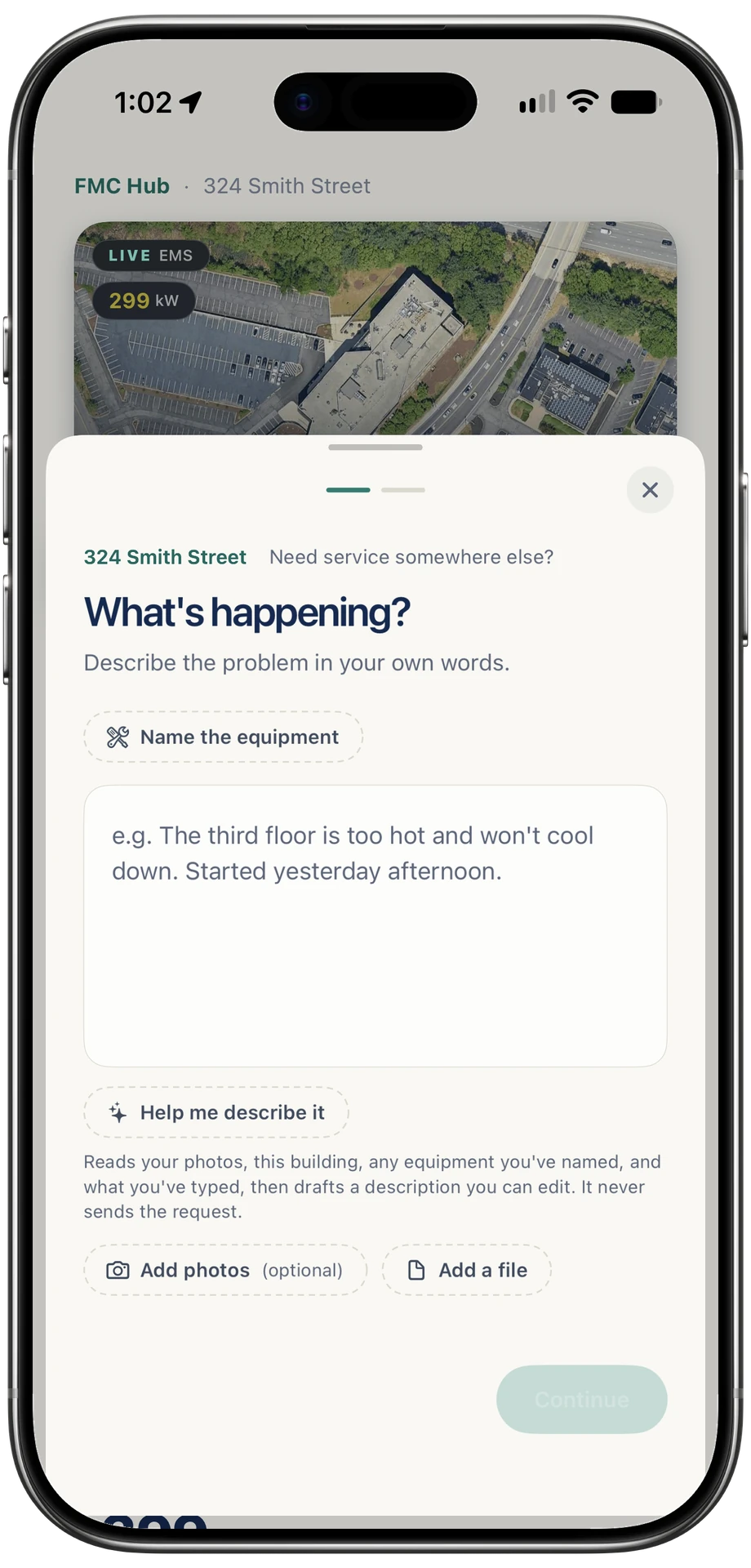
Describe it
Say what is happening in your own words. Name the equipment or add a photo if it helps.
-
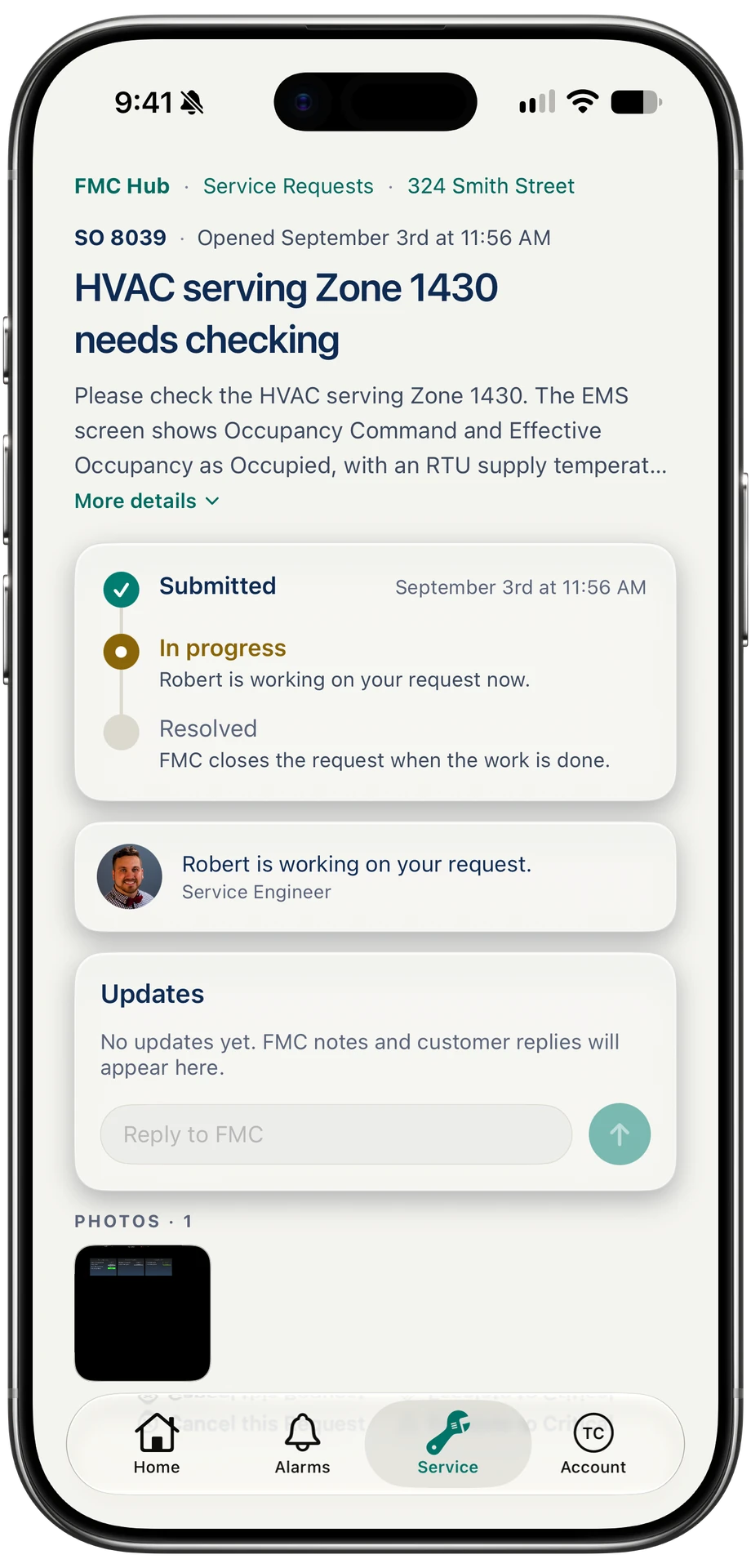
Follow it
Submitted, in progress, resolved. Each step shows as it happens, with the FMC engineer on it.
-
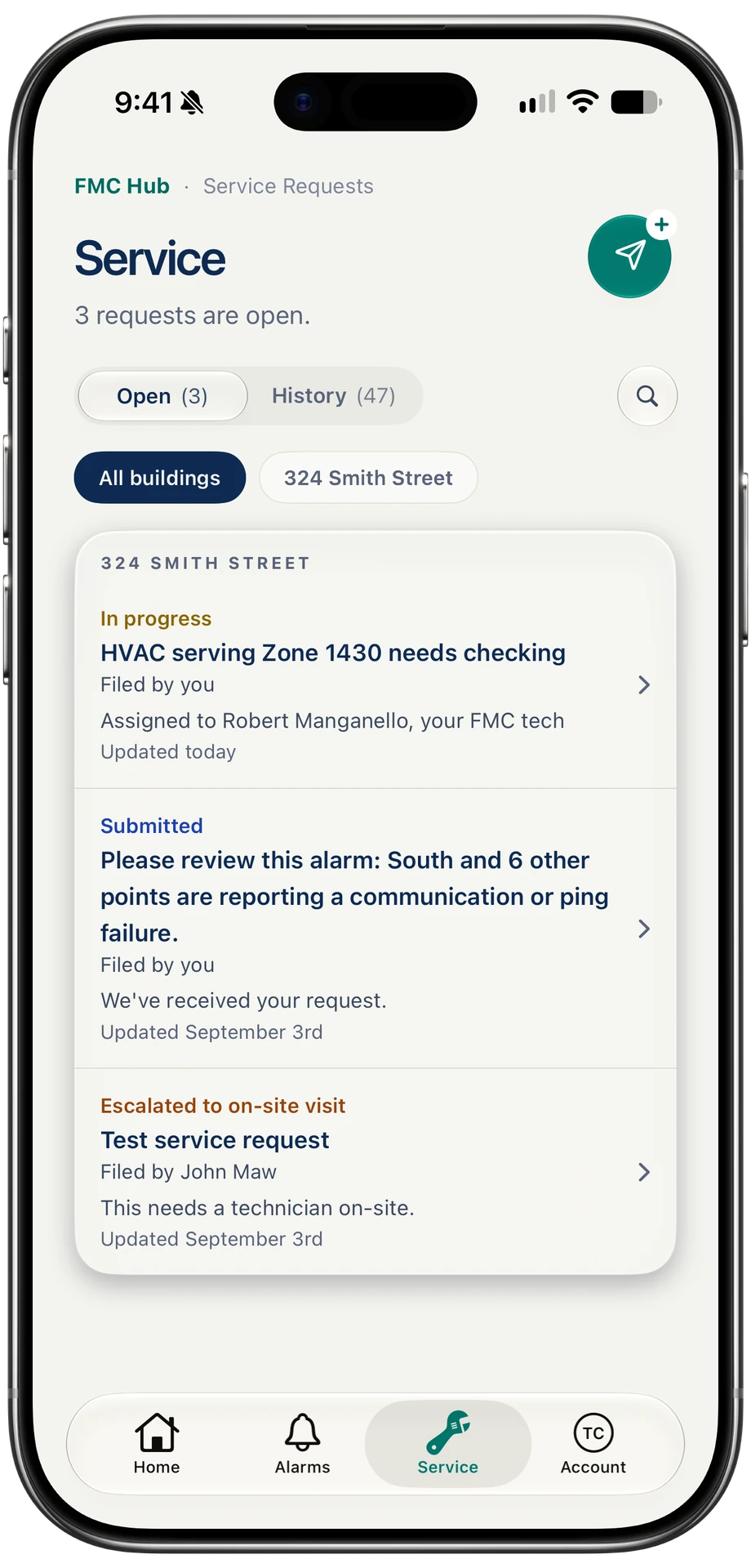
Keep track
Every open request across your buildings, each with its status and when it last moved.
Account
Your buildings can reach you.
The FMC Hub app sends a notification when an alarm starts, when your service request moves and when demand is heading for a new peak.
-
You choose what reaches you
Alarms, request updates and demand alerts are switched on or off in your account, building by building.
-
Face ID keeps it yours
The app locks itself when you leave it, and opens with Face ID.
-
One sign-in, every screen
The login FMC set up for you works in any web browser and in the app on iPhone and iPad.
See your buildings in the Hub.
FMC customers sign in with the login FMC set up for them. If you do not have one yet, ask, and a person from FMC will set you up.