Energy Efficiency Energy Management Systems Service
Case Studies Join Our Team Contact Us
Login

Stay ahead of the next problem.

Each visit checks your controls, backs up your system and ends with a written report.

Energy Management System
Service Plan

What we check.

  1. Schedules & holidaysMatch operation to occupancy.
  2. Sensors & sequencesCheck readings and operation.
  3. Controllers & backupsCheck links. Back up databases.
  4. Findings & next stepsRecord issues and recommended work.

Visit frequency and covered equipment are defined in your plan.

A closer look between visits.

Remote check-ins help spot changes in alarms, trends and schedules before the next visit.

Energy Management System
Service Plan

Changes worth a look.

Review
Alarms, trends, connections.
Investigate
Changes in operation.
Follow up
Findings for the service team.

Optional service: not continuous monitoring or emergency response. Scope and frequency follow your agreement.

Start with a call, not a site visit.

With approved access, we investigate remotely and arrange on-site work when it is needed.

Energy Management System
Service Plan

From the call to the fix.

  1. Tell us what’s happening.

    Call, or send a routine Hub request.

  2. Review the system.

    We connect using approved, working remote access.

  3. Take the next step.

    Adjust remotely or arrange a site visit.

Hours, included time and response commitments follow your agreement. Work outside your plan may be billed separately.

Illustrative service-plan pages. Coverage, visit frequency and support commitments depend on your service agreement. Ask about a plan for your building.

Track your service request in real time through FMC Hub.

For buildings FMC maintains: send a request with photos, then follow each status update until the work is resolved.

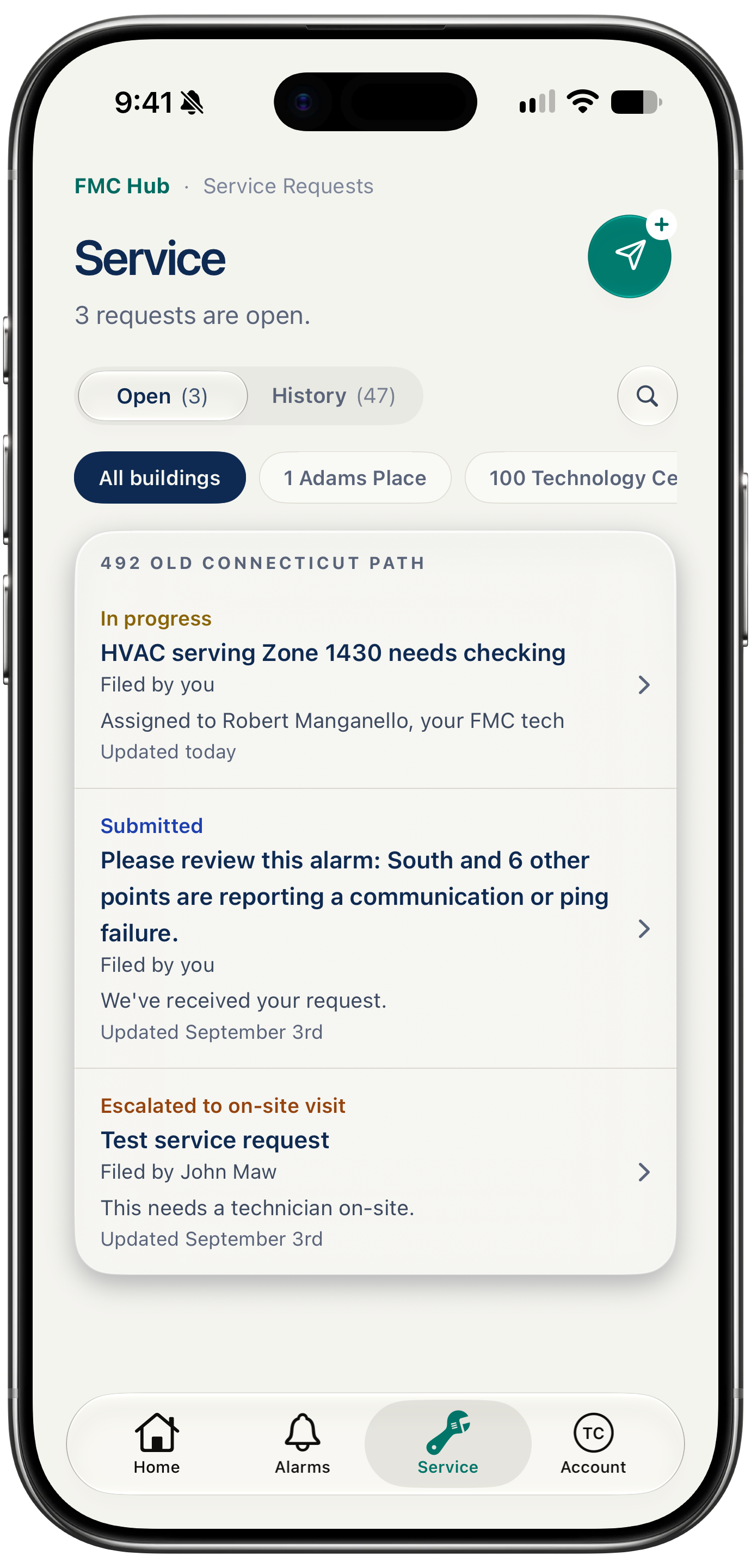
The Service tab of the FMC Customer Hub on an iPhone: three open requests for one building, each with its state - in progress, submitted, escalated to an on-site visit - above a History tab and a building filter
See open requests
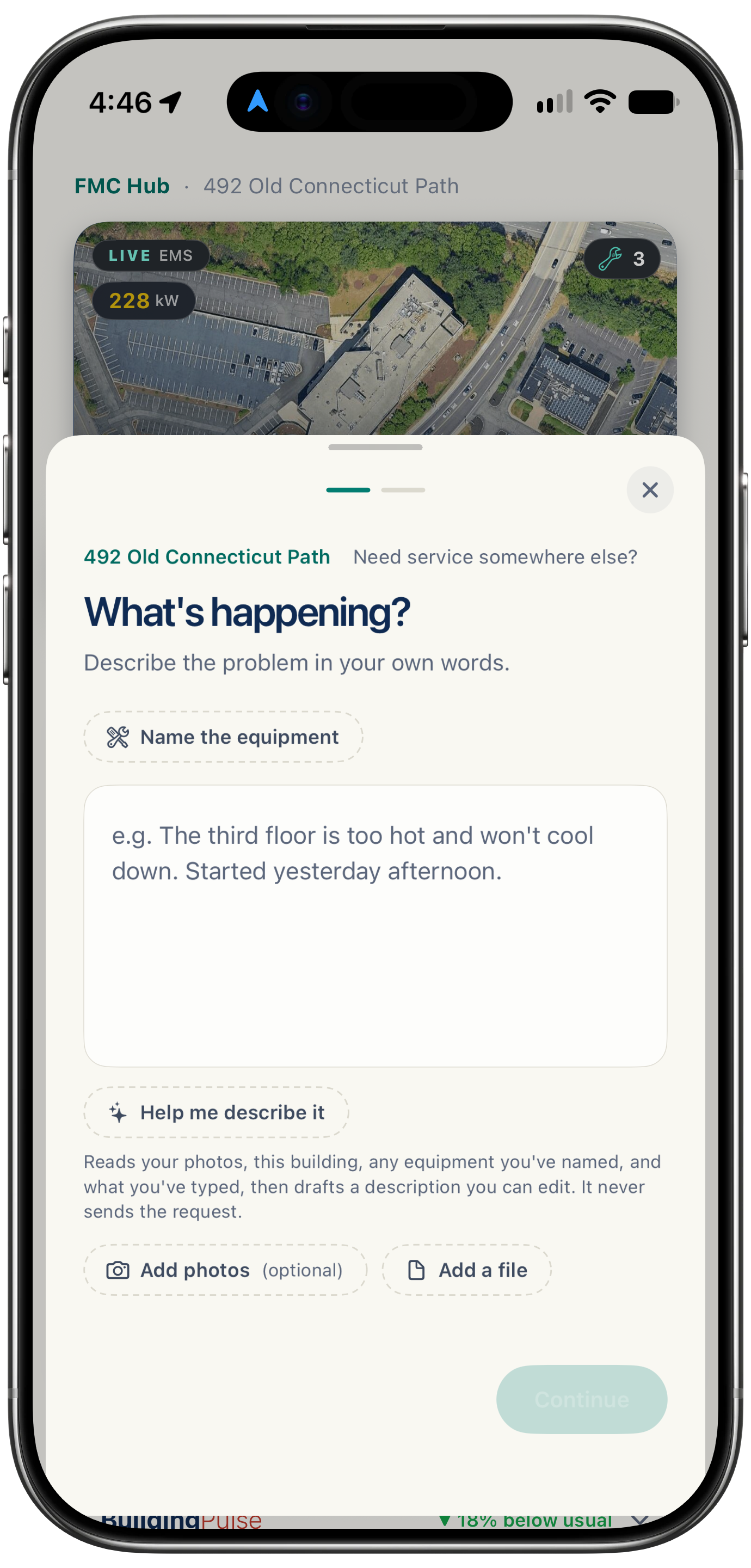
Request Service open as a sheet over a building's page in the FMC Customer Hub on an iPhone: the first of two steps asks what is happening, with a description box, an optional button to name the equipment, a button that drafts a description you can edit, optional buttons to add photos or a file, and a Continue button still greyed out
Describe the problem
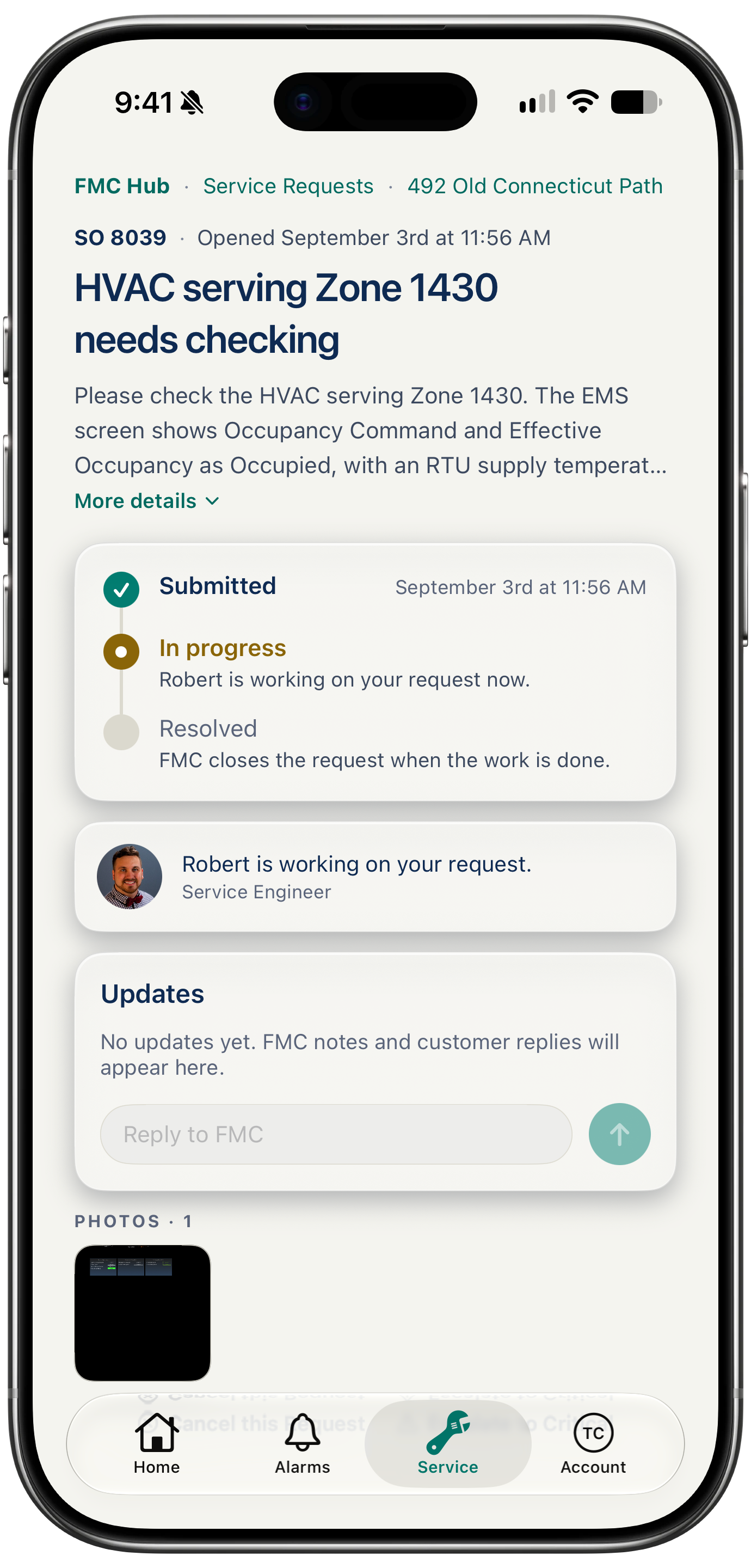
One request open on a phone: submitted, in progress and resolved with timestamps, the FMC engineer it is assigned to, the thread of updates with a reply box, and the photo attached to it
Follow the progress

See open requests

See what is submitted, in progress or headed for a site visit. Filter by building; completed work stays in History.

Describe the problem

Start from your building’s page, describe what is happening and add photos if helpful. Review before sending. Nothing goes to FMC until you confirm.

Follow the progress

See the assigned engineer, status and timestamped updates. Reply in the same thread, with your photos and files kept alongside the request.

Sign in and send a request

Something wrong in the building?

Call and ask for Service. If it can wait, a request in the FMC Customer Hub or an email keeps it in writing.